
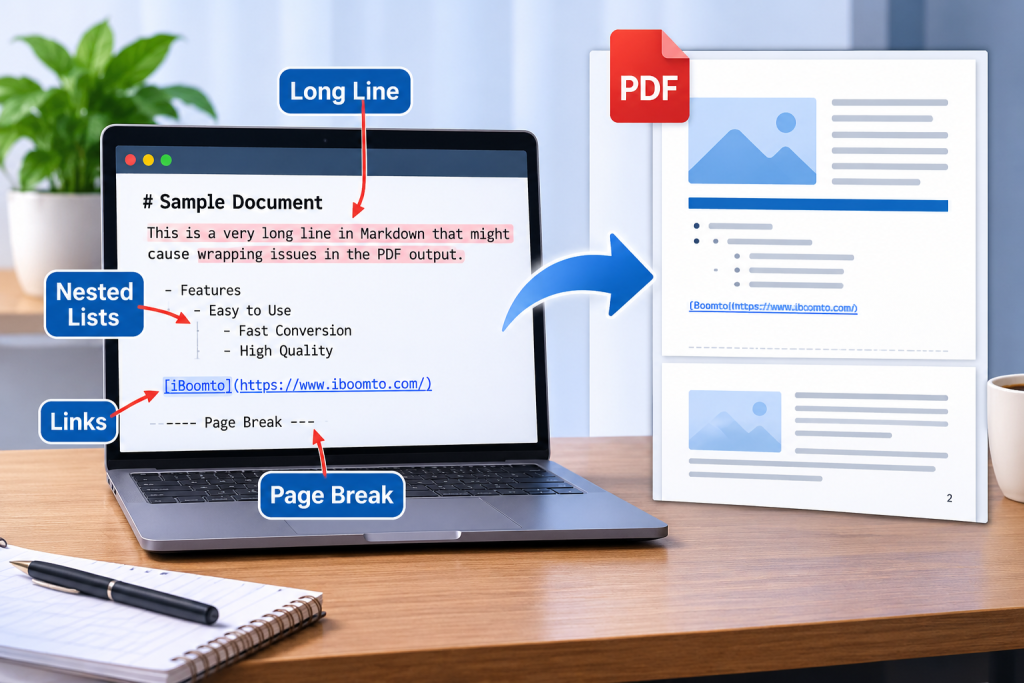

Markdown is a convenient format for writing technical documentation, tutorials, research notes, and project reports. Its lightweight syntax makes content easy to create and edit without worrying about complicated formatting. However, converting a Markdown document into a PDF does not always produce the results writers expect. Long lines may extend beyond page boundaries, nested lists can lose their indentation, hyperlinks may become difficult to read, and page breaks can interrupt important sections.
Table Of Content
The best way to avoid these problems is to inspect your Markdown file before exporting it. A short review using a sample document can help identify common formatting issues and make the final PDF easier to read, print, and share.
Start with a Sample Markdown File
Before converting an entire project or lengthy report, create a small Markdown file containing different formatting elements. Include a title, several headings, a few paragraphs, nested bullet points, hyperlinks, and a section divider.
For example, a sample document might contain a project introduction, a list of important features, links to useful resources, and a short conclusion. This gives you an opportunity to see how different elements appear after conversion.
Do not rely entirely on how the document looks inside your Markdown editor. Different applications interpret spacing, wrapping, and page layout differently. The PDF preview is what ultimately matters when someone opens or prints your document.
1. Check Long Lines and Text Wrapping
Long lines are among the first things worth checking. A paragraph that looks perfectly acceptable in a Markdown editor may become difficult to read when converted into a fixed-width PDF page.
This problem commonly occurs with long URLs, code snippets, technical descriptions, and paragraphs containing several uninterrupted words.
Open your sample Markdown file and look for unusually long sentences or lines. Check whether URLs are displayed properly and whether code blocks remain within the printable page area.
Pay attention to these details:
- Paragraphs should wrap naturally within page margins.
- Long URLs should not extend beyond the page.
- Code blocks should remain readable without horizontal clipping.
- Headings should not become excessively wide.
- Text should maintain consistent spacing between paragraphs.
If something looks crowded, consider shortening the sentence, breaking up the paragraph, or adjusting the original content before exporting.
2. Inspect Nested Lists and Indentation
Nested lists help organize complicated information into smaller sections. They are particularly useful in technical guides, software documentation, and instructional articles.
However, multiple indentation levels can sometimes create unexpected results during PDF conversion. A second-level bullet might appear too close to the main bullet, or numbered items may lose their original hierarchy.
Consider this example:
- Main feature
- First supporting point
- Second supporting point
- Additional explanation
- Another main feature
After conversion, check whether each level is visually distinct. The reader should immediately understand which points belong to the main topic and which provide additional explanations.
Also inspect numbered lists. If your document contains instructions, the numbering should follow the correct sequence without restarting unexpectedly or becoming separated from its corresponding text.
3. Test Hyperlinks Before Sharing
Hyperlinks are important in reports, research papers, tutorials, and online documentation. Markdown allows writers to insert links using simple syntax, such as [Example Website](https://iBoomto.com).
However, a link that looks correct in the original file may not always be convenient in the exported PDF.
Check whether the anchor text is readable, whether links remain clickable, and whether long URLs create unnecessary layout problems. Avoid using raw URLs throughout the document when descriptive anchor text would make the content cleaner.
It is also worth testing several links in the finished PDF. Click them to confirm that they open the intended destinations. This is particularly important when preparing documents containing references, product pages, or external research sources.
4. Review Page Breaks and Section Layout
Page breaks can significantly affect the appearance of a PDF. A heading appearing at the bottom of a page with its paragraph starting on the next page can make a document look unfinished.
Similarly, a long bullet list may be divided awkwardly between pages, while a short conclusion might appear alone on a separate page.
Review the complete PDF from beginning to end. Look for headings separated from their content, unnecessary blank spaces, split tables, and paragraphs that continue onto another page in an inconvenient position.
If you discover a problem, adjust the Markdown structure or use appropriate page-break controls supported by your conversion workflow.
5. Convert and Review with iBoomto
Once your sample file is ready, use a reliable conversion tool to check the final layout. The https://www.iboomto.com/markdown-to-pdf converter provides a straightforward way to turn Markdown files into formatted PDFs without manually writing CSS or configuring complicated conversion settings.
Upload your .md file, start the conversion, and download the resulting PDF. The online tool supports common Markdown elements, including headings, lists, tables, images, code blocks, and hyperlinks. It also supports batch conversion of up to five Markdown files at a time.
After downloading the PDF, compare it with your original Markdown document. Check the long paragraphs, nested lists, links, and page transitions discussed earlier. If anything looks incorrect, make the necessary adjustments and convert the file again.
iBoomto is also the maker of a broader document productivity platform. Its iBoomto Document AI application for Windows supports both online and local AI models for document-related workflows. Users can choose local processing for supported tasks when privacy and greater control over document data are priorities. The platform also offers free document assistance, with local AI models providing usage without token charges or token limits.
Make PDF Inspection Part of Your Workflow
A successful Markdown export involves more than clicking a conversion button. The structure of the original file, the length of its content, and the way different elements fit onto individual pages all influence the final result.
Before sharing a PDF, inspect long lines, verify nested list indentation, test hyperlinks, and review page breaks. Starting with a small sample document makes it easier to identify problems before they affect a larger project.
With a practical review process and a convenient converter such as iBoomto, writers can turn Markdown files into more organized, readable PDFs that are ready for distribution, printing, or long-term reference.