To secure your home Wi-Fi, change the router’s admin password and the Wi-Fi password, switch the security mode to WPA3 or WPA2 AES, keep the router’s firmware updated, and give visitors a separate guest network. Turning off features you don’t use, such as WPS, UPnP and remote management, closes a few more doors.
Table Of Content
The steps follow guidance from the US Cybersecurity and Infrastructure Security Agency (CISA), the UK’s National Cyber Security Centre (NCSC) and router maker TP-Link. Menu names vary between brands, so keep your router’s manual nearby.
Log in to your router’s settings
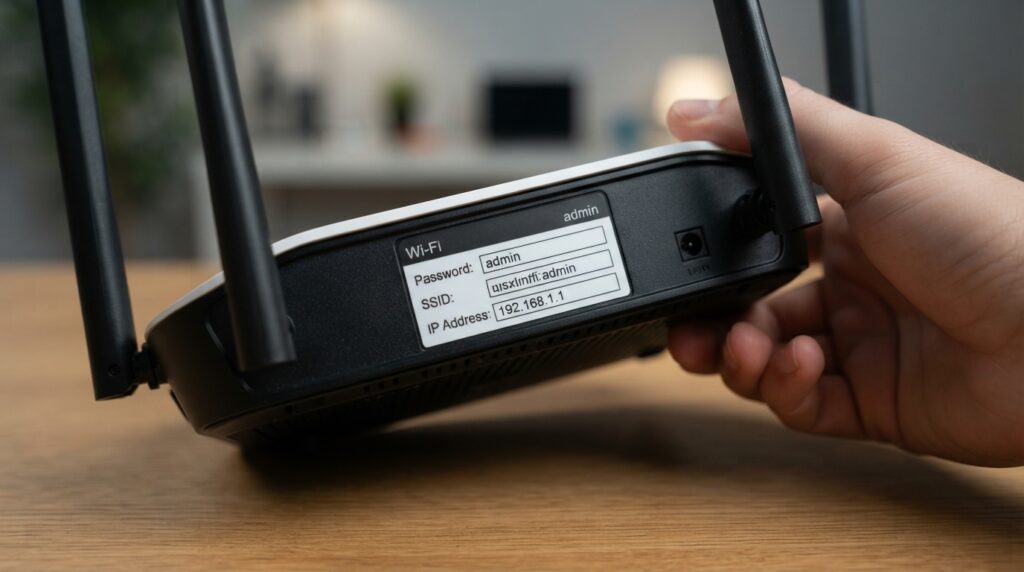
You change all of these settings from the router’s web page or app. CISA’s home Wi-Fi guide says the default details, usually including the router’s IP address and network name, are on a sticker on the router, and that you should follow the manufacturer’s manual to reach the settings.
As an example, TP-Link’s support page says to connect a computer to the router by cable or Wi-Fi, open a browser and go to tplinkwifi.net or 192.168.0.1. Other brands use their own address, which is printed on the sticker or in the manual.
If your internet provider supplied the router, its help pages or support line can tell you how to log in, and whether some settings are managed by the provider.
Change the default admin password
Change the password that protects the router’s settings first. The NCSC says all default passwords supplied by a vendor with any system, software or device should be changed before use. CISA adds that default router login details may be publicly available for anyone to find, and asks for a new password that is long, random and unique.
This is a different password from the one you use to join the Wi-Fi. On many TP-Link routers it is under Advanced > System > Administration, where you enter the current password, set a new one and click Save.
Set a strong Wi-Fi password
Use a long passphrase that nobody could guess. CISA suggests 5 to 7 unrelated words totalling at least 16 characters. The NCSC’s advice on its smart devices page is similar: combining three random words is one way to make a password that is both secure and memorable.
On TP-Link routers the Wi-Fi name and password are under Advanced > Wireless > Wireless Settings on most models, according to the TP-Link Wi-Fi settings guide. TP-Link notes that if you’re connected over Wi-Fi when you save the change, you’ll be disconnected and need to rejoin with the new password. Do this on every phone, laptop and TV in the house.
Choose WPA3 or WPA2 AES security
Set the security mode to WPA3 Personal, or WPA2 AES if WPA3 isn’t available. CISA’s guide says these are the only two forms it treats as safe, and its wireless security page calls WPA3 the strongest encryption currently available.
Older phones, printers and smart TVs may not connect using WPA3. TP-Link’s guide recommends WPA2-PSK [AES], or the combined WPA2-PSK [AES] / WPA3-Personal option where the router supports it, which lets newer devices use WPA3 while older ones stay on WPA2. Avoid older options such as WEP or plain WPA.
Rename the network
Change the default network name (SSID), and keep personal details out of the new one. CISA’s guide warns against names that include sensitive or identifying information, such as your surname or house number. CISA also notes that a default name could point an attacker to known weaknesses in the router you use.
Keep the firmware updated
Install firmware updates as soon as they’re available, because they fix security holes. CISA says routine updates protect against known vulnerabilities and that some routers can install updates automatically. TP-Link’s home network security guide says security patches and bug fixes go into each new firmware release.
Look for an update option in the router’s settings or app, and turn on automatic updates if it’s offered; the NCSC gives the same advice for every smart device at home. The NCSC also suggests treating the date a device stops getting updates as a “use by” date, because out-of-support devices are easier to hack. If your router no longer receives updates, it may be time to replace it.
Set up a guest network
Give visitors their own guest network rather than your main password. CISA describes the guest feature as separate wireless access with its own password, and TP-Link says a guest network keeps visitors away from the devices and data on your home network while still giving them internet access.
On TP-Link routers the setting is usually under Advanced > Guest Network. Give the guest network its own long, random password, as CISA recommends, and change it from time to time if many people use it.
Turn off features you don’t use
Three router features are worth switching off unless you have a specific need for them. CISA’s guide lists the reasons:
- Remote management lets you log in to the router over the internet. Turning it off stops attackers from changing your settings without first connecting to your network.
- WPS (Wi-Fi Protected Setup) connects devices at the press of a button, but CISA says it increases the chance of someone getting unauthorised access.
- UPnP lets devices open connections automatically. CISA says attackers can use it to spread malware to devices on your network, and TP-Link notes that some malware targets it.
CISA also suggests turning off file sharing between devices when you don’t need it.
Quick checklist
Use this table to work through the settings in one sitting.
| Setting | What to choose | Source |
|---|---|---|
| Router admin password | New, long, random and unique | CISA, NCSC |
| Wi-Fi password | 5 to 7 unrelated words, 16+ characters | CISA |
| Security mode | WPA3 Personal, or WPA2 AES | CISA, TP-Link |
| Network name | Changed, with no personal details | CISA |
| Firmware | Latest version, automatic updates on | CISA, TP-Link, NCSC |
| Guest network | On, with its own password | CISA, TP-Link |
| WPS, UPnP, remote management | Off unless needed | CISA |
After saving the changes, reconnect each device with the new password and check that the router’s admin page now asks for your new admin password.
Sources
- Module 5: Securing Your Home Wi-Fi, CISA Project Upskill
- Securing Wireless Networks, CISA
- Password administration for system owners, NCSC
- Smart devices: using them safely in your home, NCSC
- How to change the admin password of a TP-Link router, TP-Link FAQ 73
- How to change Wi-Fi settings on a TP-Link wireless router, TP-Link FAQ 3085
- What is home network security and how do I secure my WiFi router?, TP-Link